
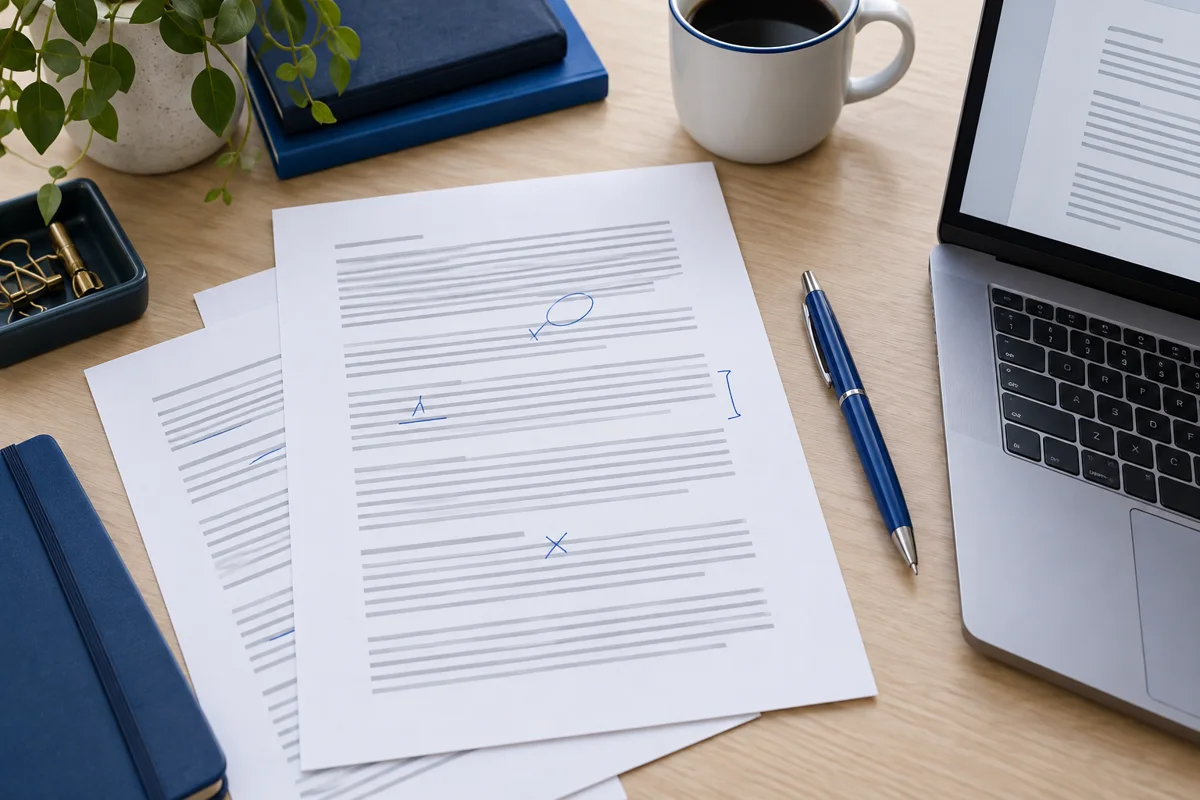
A good list of changes keeps the editor from having to guess what to change. Before sending your PDF, set aside the correct version, explain the final use and identify each change. You can follow the procedure below even when someone else will edit the document.
1. Identify the type of file
Try selecting a word and using your PDF reader's search. If that works, there's probably a text layer. Even so, fonts, columns and images can make editing harder. If the whole page behaves like a photograph, the text may need to be recognized or parts of the layout rebuilt.
This test is a screening, not a guarantee: a scanned PDF may have a recognition layer behind the image. If there's an original in Word, a presentation or another editor, say so and send a copy when appropriate. Working on the original can better preserve the document's structure.
2. Make a list that gives place, change and result
| Page | Current location | Requested change | How to check |
|---|---|---|---|
| 1 | Subtitle “Painting service” | Change to “Residential painting services” | Full text, not cut off on the line |
| 2 | Photo below the title | Replace with new-storefront.jpg | Whole photo with proportions preserved |
| All | Footer | Update phone with the number provided | Correct number on every page |
| 4 | Whole page | Remove outdated page | Sequence and numbering reviewed |
When the printed page number differs from the position in the file, write both: “third page of the file, labeled as page 1”. For a replacement, provide the complete final text. “Fix address” without the new address isn't enough to make the change.
3. Define the purpose before reducing or reorganizing
A PDF for reading on a phone should keep text legible and links usable. For printing, confirm page size, margins and the print shop's requirements before finalizing the file. If there's a size limit for sending, give the exact limit; shrinking images too much can hurt readability.
Avoid converting every page into images just to reduce the file size: this can remove text selection and make search and accessibility harder. Ask which elements will be preserved and review a sample page when the change is large.
4. Prepare attachments without losing history
- Keep the original in a separate folder and work on a copy.
- Name versions with a date or number, for example “catalog-v02.pdf”.
- Send images and logo as files, avoiding screenshots when a better original exists.
- Gather comments in one list so you don't mix requests from different versions.
- Share only the data needed for the service. Don't send passwords with the document.
5. Template to copy and fill in
File and version: Purpose: mobile reading / printing / other Page size and file limit, if any: Page and location of each change: Current text → final text: Current image → new file name: Pages to remove, insert or reorder: Elements that must stay the same: Desired timeline: Person responsible for review:
Download the change list as text (in Portuguese)
6. Review the final version in two passes
On the first read, check information: names, contacts, amounts, dates and the text of each change. On the second, check presentation: line breaks, images, alignment, sequence and page size. Open the file in another reader or device when possible and test the links that should work.
Automatic text recognition can confuse similar characters, especially numbers. Don't consider a quick visual check enough for tables and data-heavy documents. An image of a signature is not a digital signature; changes to signed documents require care with validity and the signing process. NS does not make changes to present false information.
See a fictional before-and-after example and check the service scope before hiring. Feasibility and timeline are defined after assessing the file.
Turn comments into a checkable list
When more than one person reviews the document, gather the notes into a single version. For each item, mark “pending”, “adjusted” or “checked”, instead of treating a change as approved just because it came up in a conversation.
Fictional example: the request says to change the phone number on every page. The review must also check the cover, the footer and linked buttons. Changing only the visible number doesn't automatically update an embedded WhatsApp link.
Compare content and presentation separately
- Content: compare the final text with the approved list, including numbers, names and accents.
- Navigation: test links, bookmarks and page order, when they're part of the scope.
- Presentation: check whether the change created cut-offs, overlaps, a different font or a distorted image.
- Final use: open it on the intended device or reader and confirm printing requirements when applicable.
If text recognition produced incorrect characters, give the page and the correct spelling. Searchable text can still contain errors; don't treat the existence of a text layer as proof that the conversion was checked.